S.E.F.I.

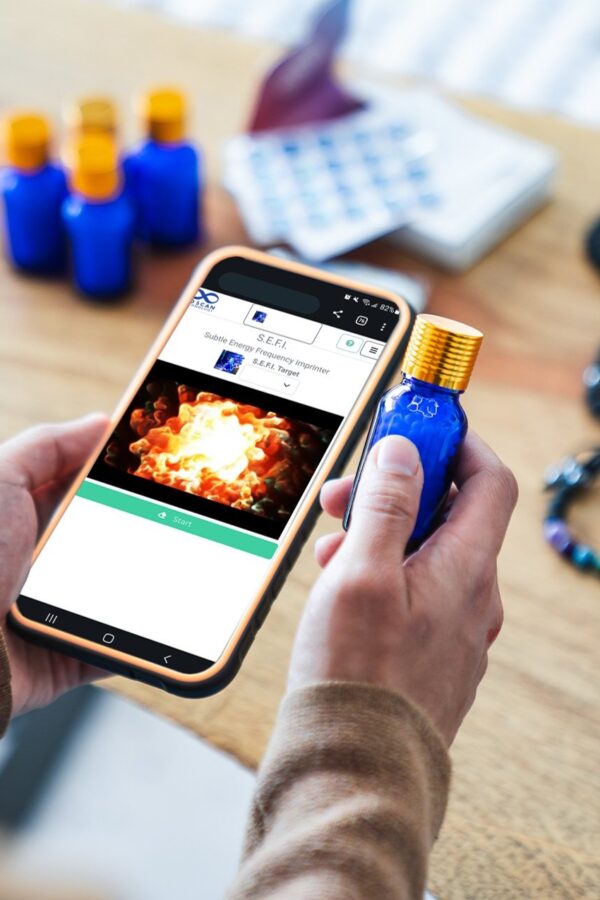
The Subtle Energy Frequency Imprinter (SEFI) technology is designed to capture, amplify, and imprint subtle energy frequencies, and can either broadcast or imprint those frequencies into any element or item.

The broadcasting and imprinting categories included in this technology are Custom Playlist, Quantum Reach, Quantum Frequency, Quantum Affirmations, Quantum Flowers, Quantum Chakras, Quantum Homeopathics, and Quantum Homeo-Energetix.

  • Custom Playlist – A Wide selection of audios to imprint or broadcast frequencies simultaneously or individually. Playlists can be customized according to the different programs in the SEFI Module.

  • QUANTUM REACH – Wide selection of categories to imprint or broadcast specific frequencies for emotions and body functions.

  • QUANTUM FREQUENCY – Wide selection of categories to imprint or broadcast frequencies for specific physical functions.

  • QUANTUM AFFIRMATIONS – Wide selection of affirmative frequencies to
    balance emotions.

  • QUANTUM FLOWERS – Frequencies extracted from a large variety of flowers to target emotional issues.

  • QUANTUM CHAKRAS – Seven different chakra frequencies to balance energy.

  • QUANTUM HOMEOPATHICS – HomeoEnergetix frequencies extracted from flowers and other natural elements.

  • INNERGY HOMEO-ENERGETIX – A combination of HomeoEnergetix and
    energetic frequencies.

S.E.F.I. FAQs

How often do I use SEFI?

The SEFI Scan is designed to be performed multiple times a day as needed. However, this is not a fixed guide for every user and should be performed depending on the users’ individual needs.

What headset do I use during SEFI?

To conduct the SEFI Scans, you do NOT need to use the Bone Conducting Transducer Headset or earphones.

How To Scan

1. On the Comprehensive menu page, under the ‘Intelligent Scan’ section, tap ‘Complete’.

2. In the ‘Comprehensive Scan List,’ tap the ‘Select All’ button to scan every option, OR tap ‘Deselect All’ to uncheck all. If you choose to deselect all the options, you can select the specific areas you wish to scan by tapping the box next to the category or the specific body parts.

3. While wearing the Bone Conducting Transducer Headset, tap ‘Scan’. The ‘Scan’ button is located at the top of the page.

4. When the 3-minute scan has been completed, tap the ‘Optimize Frequencies’ button at the bottom of the page.

5. When the frequency optimization is complete, tap the ‘Reports’ button to review your report.

6. Tap the ‘Email’ button to email your reports. The email button is located next to the ‘Reports’ button.

*Please note: the Intelligent Scan results are populated based on the reports from Inner Voice and Vitals scans. If the Inner Voice and Vitals scans are not performed before the Intelligent Scan, the Intelligent Scan will not populate results.

*To access the Comprehensive Scan technology features, select ‘Comprehensive’ in the AO Scan homepage.

1. On the Comprehensive menu page, under the ‘Intelligent Scan’ section, tap ‘Vitals’.

2. In the ‘Comprehensive Scan List,’ tap the ‘Select All’ button to scan every option, OR tap ‘Deselect All’ to uncheck all. If you choose to deselect all the options, you can select the specific areas you wish to scan by tapping the box next to the category or specific body parts.

3. While wearing the Bone Conducting Transducer Headset, tap ‘Scan’. The ‘Scan’ button is located at the top of the page.

4. When the scan has been completed, tap the ‘Optimize Frequencies’ button at the bottom of the page.

5. When the frequency optimization is complete, tap the ‘Reports’ button to review your report.

6. Tap the ‘Email’ button to email your reports. The email button is located next to the ‘Reports’ button.

*Please note: the Intelligent Scan results are populated based on the reports from the Vitals Scan. If the Vitals Scan is not performed before Intelligent Scan, the Intelligent Scan will not populate results.

1. On the Comprehensive menu page, under the ‘Intelligent Scan’ section, tap ‘Complete’.

2. In the ‘Comprehensive Scan List,’ tap the ‘Select All’ button to scan every option, OR tap ‘Deselect All’ to uncheck all. If you choose to deselect all the options, you can select the specific areas you wish to scan by tapping the box next to the category or the specific body parts.

3. While wearing the Bone Conducting Transducer Headset, tap ‘Scan’. The ‘Scan’ button is located at the top of the page.

4. When the 3-minute scan has been completed, tap the ‘Optimize Frequencies’ button at the bottom of the page.

5. When the frequency optimization is complete, tap the ‘Reports’ button to review your report.

6. Tap the ‘Email’ button to email your reports. The email button is located next to the ‘Reports’ button.

*Please note: the Intelligent Scan results are populated based on the reports from the Inner-Voice and Vitals scans. If the Inner-Voice and Vitals scans are not performed before Intelligent Scan, the Intelligent Scan will not populate results.

1. In the Comprehensive menu page, under the ‘Custom’ section, tap ‘Custom Scan’.

2. In the ‘Comprehensive Scan List,’ tap the ‘Select All’ button to scan every option, OR tap ‘Deselect All’ to uncheck all. If you choose to deselect all the options, you can select the specific areas you wish to scan by tapping the box next to the category or the specific body parts.

3. While wearing the Bone Conducting Transducer Headset, tap ‘Scan’. The ‘Scan’ button is located at the top of the page.

4. When the scan has been completed, tap the ‘Optimize Frequencies’ button at the bottom of the page.

5. When the frequency optimization is complete, tap the ‘Reports’ button to review your report.

6. Tap the ‘Email’ button to email your reports. The email button is located next to the ‘Reports’ button.

Erase

Before imprinting any frequency or affirmation into an object, it is important to first erase (cancel) the current energy and frequency of that object.

Step-by-step Instructions:

1. Tap the ‘Erase’ button located under the SEFI Target section.

2. Place the object on the center of the device, over the ‘fire’ image provided.

3. Tap the ‘Start’ button located below the image.

4. The ‘Erase’ feature will run for about ten seconds to erase the current energy and frequency of the item. After erasing the energies and frequencies of the object, you will automatically be directed to the SEFI homepage.

Imprint

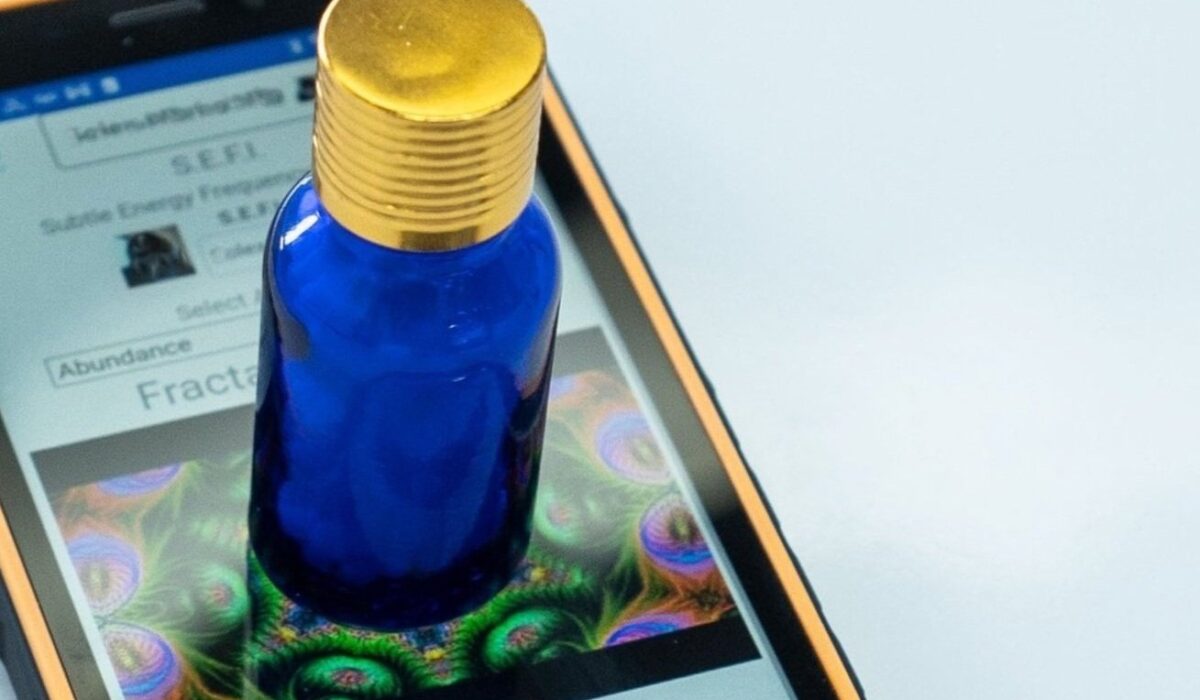
Imprinting allows you to transfer specific frequencies from your device onto other objects, which allows you to utilize those frequencies throughout the day.

Step-by-step Instructions:

1. To imprint any frequency or affirmation into an object, tap the ‘Imprint’ button located under the SEFI Target section.

2. Place the item to IMPRINT above the green ‘Start’ button. Place the item to COPY below the green ‘Start’ button.

3. Tap the ‘Start’ button located at the center of the screen.

4. The ‘Imprint’ feature will run for about 20 seconds to imprint the item. After imprinting the object, you will automatically be directed to the SEFI homepage.

Custom Playlists

You can create an unlimited number of custom playlists in the Custom Playlist feature. Each playlist can contain up to 15 audios from any of the SEFI audio categories. Name the playlist for easy reference and enjoy!

1. On the SEFI menu page, tap the ‘Custom Playlist’ option.

2. To create a new Custom Playlist, select the ‘Plus Sign’ button right next to ‘My Custom Playlist.’

3. Underneath the option ‘My Custom Playlists’, select the dropdown menu to see all your playlists. To select a specific playlist, click on the name of the playlist. The dropdown menu will close automatically when the playlist has been selected. The audios included in the playlist selected will appear below the dropdown menu.

4. Select the ‘Edit’ button next to the dropdown menu to edit your playlist. You will be directed to a new page where you can remove or add new audios to your playlist. To remove audios, select the ‘X’ next to each audio. To add audios, select any audio from the ‘SEFI Audio List’ located on the bottom half of the screen. Select the ‘Save’ button when you are done editing your playlist. After clicking ‘Save,’ you will be directed back to the main Custom Playlist page.

5. To imprint or broadcast the audios of the playlist one at a time, select the ‘Individual’ button. This feature will play the audios one after another.

6. To imprint or broadcast the audios of the playlist at the same time, select the ‘Simultaneous’ button. This feature will play all the audios in the playlist at the same time.

7. After selecting either the ‘Individual’ or the ‘Simultaneous’ options, you can perform a 20-second imprint, a 2-minute broadcast, or a continuous broadcast of the playlist.

1. To create a new custom playlist, select the ‘Plus Sign’ button right next to ‘My Custom Playlist.’

2. To add a name to your playlist, type the name in the white box next to the ‘Playlist Name’ section. Tap the ‘Scan’ button located at the top of the page.

3. You can select up to 10 audios to add to your playlist. All the audios available are located under the ‘SEFI Audio List’ section. After selecting an audio, it will automatically be added to the playlist. The name of the audio will appear in the rectangle under the playlist name.

4. After selecting all the desired audios for your playlist, select the ‘Save’ button underneath the audio rectangle.

How to Run a SEFI Scan

Please watch the following video for a step-by-step visual guide to learning how to run a SEFI Scan.For more assistance, please reach out to our Customer Support Team at 0400 006 576!

AO Scan Features Overview

AO MindSync

AO MindSync MindSync is an affirmation programming tool that delivers affirmations of your own voice through a binaural process. A binaural process is a cognitive...

Read More

SEFI

S.E.F.I. The Subtle Energy Frequency Imprinter (SEFI) technology is designed to capture, amplify, and imprint subtle energy frequencies, and can either broadcast or imprint those...

Read More

Comprehensive Scan

Comprehensive Scan The Comprehensive Scan technology performs a detailed scan of the frequencies from over 130 organs, cells, bones, and chromosomes. The Comprehensive Scan provides...

Read More

Body Systems Scan

Body Systems Scan The Body Systems Scan performs a complete and thorough scan and optimization of hundreds of Blueprint Frequencies associated with 13 body systems....

Read More

Vitals Scan

Vitals Scan The Vitals Scan mode of the AO Scan Technology performs a complete scan of over 550 Blueprint Frequencies associated with each bodily function...

Read More

Inner Voice

Inner Voice The Inner Voice technology uses a sound harmonizing technique that generates a balancing audio frequency derived from the voice spectrum in humans to...

Read More

EZ Scan

EZ Scan The EZ Scan technology is the most convenient and simplest way to perform Inner Voice, Vitals Scan, Comprehensive Scan, and the associated optimizations...

Read More

Quick Scan

Quick Scan The Quick Scan technology performs Morning, Midday, and Evening scans. As part of the process, supplements and therapies can be uploaded and utilized...

Read More

Experience Nano Technology

Take your Health to the next level with AO Infinity Products